Quick Answer
The best remote-work desk setup is not the most expensive one. It is the setup that removes the biggest sources of friction from the way you actually work.
For most people, that means starting with a reliable laptop, a comfortable monitor setup, a suitable keyboard and mouse, dependable connectivity and power, and a desk and chair that allow you to work comfortably.
The important distinction is that you should build around problems, not products. If the laptop screen is too small, add a monitor. If the laptop is too low, raise it. If cables are becoming a daily nuisance, use a compatible dock. If your mouse is uncomfortable, change the shape or size before buying more features.
The LaptopSage Remote Work Setup
Our research points to a simple hierarchy. These are the components that matter most for a productive home office.
| Component | Priority | Why it matters |
|---|---|---|
| Laptop | Essential | Core computing device |
| External monitor | High | More screen space |
| Keyboard | High | Comfortable long-term typing |
| Mouse | High | Navigation and pointer control |
| USB-C hub/dock | High | Simplifies connectivity |
| Desk | High | Workspace foundation |
| Chair | High | Long-session comfort |
| Webcam | Medium | Video meetings |
| Headphones | Medium | Calls and concentration |
| Lighting | Medium | Video quality and comfort |
| Ethernet | Optional | Reliable wired networking |
| Laptop stand | High | Screen positioning and airflow |
Important: The right combination depends on your workload, space, budget and existing equipment.
What Makes a Good Remote Work Desk?
A good remote-work setup should accomplish four things.
Productivity
Your equipment should make it easier to work without unnecessary friction.
Comfort
You may spend several hours a day at the desk, so screen, keyboard, mouse and chair positioning matter.
Reliability
Your internet connection, power and peripherals should not constantly interrupt your work.
Flexibility
Your workspace should adapt when your workload changes instead of forcing you to replace everything.
You do not need the most expensive product in every category. You need the right combination.
1. Start With Your Laptop
The laptop is the foundation of the setup, but buying the most powerful model is not automatically the right decision.
For general office work
For many users, a modern laptop with 16GB RAM and SSD storage is a sensible starting point for email, Microsoft Office, Google Workspace, web applications, video calls, spreadsheets and document management.
For programming
Developers should pay more attention to RAM, processor efficiency, storage, external-monitor support, USB-C/Thunderbolt/USB4 connectivity and operating-system compatibility.
- 16GB: practical baseline for many development workloads.
- 32GB: more appropriate for heavier development, containers, virtual machines and large environments.
For creative work
Video editors, photographers and designers should prioritize display quality, processor and GPU performance, RAM, SSD capacity, color accuracy and external-storage support.
A thin office laptop may be perfectly adequate for email but unsuitable for professional 4K video editing. Match the laptop to the workload rather than the marketing category.
2. Add an External Monitor
One of the highest-impact upgrades for a home office is additional screen space. Instead of constantly switching between windows on a 13- or 14-inch laptop, a larger monitor can give you room for your primary task and reference material at the same time.
How large should your monitor be?
24 inches: suitable for small desks, basic office work and tighter budgets.
27 inches: a strong general-purpose choice for office work, programming, research, spreadsheets and content creation.
32 inches: useful for large spreadsheets, editing, programming and design, provided your desk has enough depth.
What resolution should you choose?
1080p remains usable and affordable at smaller sizes. 1440p is a strong balance for a 27-inch productivity monitor. 4K is attractive for photography, video, design, large screens and very sharp text, but higher resolution is not automatically better; scaling and application support also matter.
Ultrawide vs. two monitors
Two monitors offer flexible positioning, easy document comparison and a dedicated screen for communication. An ultrawide provides one continuous workspace and works particularly well for timelines and side-by-side applications, but usually needs more desk width.
3. Raise the Laptop
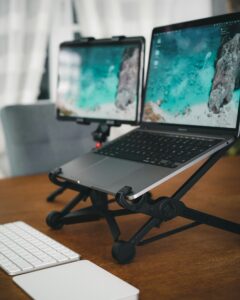
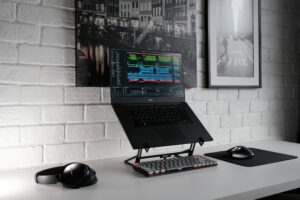
If the laptop is your primary or secondary display, placing it flat on the desk can leave the screen too low. A laptop stand can raise the display closer to eye level and improve the way the workstation is arranged.
Once the laptop is elevated, an external keyboard and mouse usually make more sense. This creates a more desktop-like workstation while leaving the laptop screen available as a second display.
Compare current options if your biggest problem is screen height or airflow rather than sustained thermal performance.
4. Choose the Right Keyboard
Your keyboard is one of the most frequently used components. The best keyboard is not necessarily the one with the most features.
Consider key feel, layout, noise, size, wrist position, wireless connectivity, battery life and backlighting.
Mechanical vs. membrane keyboards
Mechanical: distinct key feel, many switch choices, customization and often strong durability. The trade-offs are noise, cost and larger designs.
Membrane: generally quieter, affordable, simple and often thinner, but less customizable and more variable in key feel.
For a shared workspace, a quieter keyboard can be more practical than an extremely loud mechanical design.
The original article’s product link is preserved. Compare the current configuration and price before purchasing.
5. Choose a Mouse Based on Your Hand
Mouse selection is more individual than many desk guides suggest. Pay attention to hand size, grip style, shape, weight, connectivity and button placement.
Do not choose a mouse simply because the product description calls it “ergonomic.” Ergonomics are highly individual.
Should you use a vertical mouse?
A vertical mouse can be worth trying if you prefer a more upright hand position, but it is not automatically better for everyone. Hand size and fit should be considered before features or price.
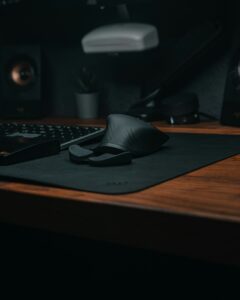
A vertical option from the original article for readers who want to explore a more upright mouse position.
6. Add a USB-C Hub or Dock
A compatible USB-C dock can consolidate a monitor, keyboard, mouse, Ethernet, external storage and webcam through one connection.
Laptop → one USB-C cable → powered dock → monitor + keyboard + mouse + Ethernet + accessories.
Hub vs. dock
A compact hub is generally designed for portability. A dock is more appropriate for a permanent workstation and may include external power, multiple display outputs, Ethernet, many USB ports, audio and SD card readers.
Check USB-C charging compatibility
Do not assume a dock will charge every laptop. Check USB-C charging support, the dock’s Power Delivery output, charger wattage and cable capability. A dock advertising 100W PD does not necessarily mean your laptop receives 100W.
For a permanent workstation, a high-bandwidth dock can simplify the daily connection routine. Verify compatibility with your laptop and displays.
7. Internet Connectivity
Remote work depends on reliable internet. Wi-Fi is convenient, but Ethernet can be preferable for a fixed workstation because it can provide stable connectivity and consistent latency.
| Situation | Recommendation |
|---|---|
| Laptop used around the house | Wi-Fi |
| Permanent home office | Ethernet if practical |
| Video conferencing | Either; Ethernet can improve consistency |
| Large file transfers | Ethernet preferred |
| Gaming | Ethernet often preferable |
| Temporary workspace | Wi-Fi |
8. Webcam
A built-in webcam may be sufficient for casual meetings. If you are frequently on camera, an external webcam can provide better image quality, framing, low-light performance and positioning.
Before buying a better webcam, improve your lighting. A modest webcam with good lighting can often look better than an expensive webcam in poor lighting.
9. Lighting
Lighting is one of the cheapest ways to improve a video-call setup. If possible, face a window rather than sitting with a bright window behind you. If natural light is unreliable, use a small desk or video light in front of you.
Avoid extremely bright light directly above your head. For evening work, adjustable task lighting can make the workspace more comfortable.
A monitor light can be useful when desk space is limited or you need controlled task lighting.
10. Headphones and Audio
Headphones can improve meetings, reduce distractions and provide privacy in shared spaces. Noise cancellation can be particularly useful around traffic, household activity, construction or office noise, but it is not essential for everyone.
If your primary need is professional communication, a dedicated headset with a suitable microphone may be more important than premium music features.
For readers who want noise cancellation for calls and concentration, compare the current price and specifications.
11. Do You Need a Laptop Cooling Pad?
Not necessarily. A cooling pad can help some laptops under sustained workloads, but its effectiveness depends heavily on ventilation design.
For ordinary office work, a simple laptop stand may be more useful. For gaming, rendering or other sustained workloads, active cooling can be worth considering when the laptop’s intake design allows the additional airflow to reach the cooling system.
Our separate cooling-pad research found that results vary substantially between laptop and cooling-pad combinations. Diagnose the thermal problem first rather than buying a cooler simply because the laptop feels warm.
12. Desk Size
Your desk needs enough room for the equipment you actually use. A basic laptop setup may work with around 100–120 cm of width. A laptop, 27-inch monitor, keyboard, mouse and speakers can benefit from roughly 120–160 cm, while dual monitors or an ultrawide may need more.
Depth matters too. A shallow desk can force the monitor too close to your face and limit comfortable positioning.
13. Chair
Do not treat the chair as an afterthought. Look for adjustable seat height, adequate lumbar support, a comfortable seat, a stable base and adjustable armrests where possible.
You do not necessarily need an expensive gaming chair. A well-adjusted office chair can be the better choice.
A researched chair option from the original guide. Check the current configuration, dimensions and fit before buying.
14. Monitor Position
A good monitor position is roughly directly in front of you, with the upper portion of the display around eye level depending on your posture and monitor size. The exact position varies between people.
The practical goal is to avoid spending hours with your neck constantly tilted downward or rotated to one side.
15. Keyboard and Mouse Position
Your keyboard should be positioned so your shoulders can remain relaxed. Keep the mouse close enough that you do not repeatedly reach forward or sideways.
Small positioning changes can make a surprising difference over a long workday.
16. Cable Management
Cable management is not only about aesthetics. A messy desk can make it harder to disconnect your laptop, replace equipment, troubleshoot devices and clean the workspace.
A simple approach is enough: cable clips, Velcro ties, a cable tray and sensible dock placement. Try to create one organized path from the rear of the desk to the power outlet.
17. Power Management
Your remote-work desk should have a reliable power strategy. Consider surge protection, a suitable power strip and UPS backup where appropriate.
If power interruptions are common where you work, backup power may be more valuable than another peripheral. A laptop’s internal battery already provides short-term backup, but your router may still lose power.
18. Should You Use a UPS?
A UPS can be useful when power interruptions are frequent, you use a desktop computer, networking equipment needs to stay online, you work on important calls, or sudden shutdowns could cause data loss.
For a laptop-only setup, a UPS is less critical because the laptop battery provides some backup. A small UPS for networking equipment can sometimes be more useful.
19. Backup Internet
If reliable connectivity is essential for your job, consider a backup connection. A practical example is home broadband as the primary connection and a mobile hotspot as the backup.
This can be particularly valuable for remote employees, freelancers, customer-support workers and consultants who cannot afford an unexpected connection failure during an important meeting.
20. Build the Desk Around Your Work
This is the most important principle in the guide. Your role should determine where your money goes.
If you’re a programmer
Prioritize a capable laptop, a 27-inch or larger monitor, comfortable input devices, a USB-C dock, Ethernet where practical and sufficient RAM.
If you’re a writer
Prioritize an excellent keyboard, comfortable monitor, quiet workspace, suitable mouse and good lighting.
If you’re in customer support
Prioritize reliable internet, a comfortable headset, webcam, second monitor and backup internet.
If you’re a designer
Prioritize a color-accurate display, powerful laptop, graphics performance, large SSD and comfortable input devices.
If you’re a video editor
Prioritize a powerful CPU, appropriate dedicated GPU, large SSD, high-quality monitor and fast external storage.
Three Remote Work Setups
Budget Setup
You do not need to spend thousands of dollars. Use an existing laptop if it meets your workload, a 24-inch 1080p monitor, a basic keyboard, a comfortable mouse, an affordable laptop stand and Wi-Fi.
Philosophy: upgrade the biggest bottleneck first.
Balanced Setup
For someone working remotely every day: 16GB RAM or more, a 27-inch 1440p monitor, quality productivity keyboard, ergonomic productivity mouse, USB-C dock with Power Delivery, Ethernet where practical, good headset or headphones and a simple front-facing desk light.
This is the setup I would recommend for most professional remote workers.
Premium Setup
For users who spend most of their working day at the desk: high-performance professional laptop, dual 27-inch monitors or a large ultrawide, high-bandwidth powered dock, premium keyboard and ergonomic mouse, quality headset or dedicated microphone, Ethernet, UPS where appropriate, and a high-quality adjustable desk and office chair.
The goal is not to own expensive products. The goal is to eliminate friction from your working day.
What Should You Upgrade First?
- Chair — If you are physically uncomfortable, everything else becomes secondary.
- Monitor — Additional screen space can improve multitasking.
- Keyboard and mouse — These are the devices you interact with constantly.
- Dock — Especially valuable if you repeatedly connect and disconnect accessories.
- Lighting — Inexpensive but useful for calls.
- Audio — Upgrade if meetings or concentration are important.
- Decorative accessories — Only after functional problems are solved.
What You Don’t Need
A good remote office does not require a gaming PC, RGB lighting everywhere, three monitors, an expensive standing desk, a $300 keyboard, a premium webcam, an enormous desk or a gaming chair.
Buy based on your workload.
Common Remote Desk Mistakes
Buying equipment before measuring the desk
Measure width, depth, monitor footprint and cable clearance first.
Buying the biggest monitor
Bigger is not always better. Desk depth and viewing distance matter.
Ignoring the chair
You can have an expensive monitor and still have an uncomfortable workspace.
Using the laptop flat on the desk
This often creates a low screen position. Use a stand if the laptop is your secondary display.
Buying an expensive dock without checking compatibility
USB-C capabilities vary between laptops. Check charging, display and data support before purchasing.
Assuming ergonomic means comfortable
Ergonomic products still need to fit the individual.
The LaptopSage One-Cable Desk
One of our preferred approaches for a modern laptop workstation is:
One USB-C cable
↓
Powered dock
↓
Monitor · Keyboard · Mouse · Ethernet · Webcam · Storage · Power
When you arrive, connect one cable. When you leave, disconnect one cable. For people who regularly move between home and another workplace, this can be one of the most useful improvements you make.
Our Recommended Remote Work Philosophy
Don’t build your desk around products. Build it around problems.
| Problem | Possible solution |
|---|---|
| Laptop screen is too small | External monitor |
| Laptop is too low | Laptop stand |
| Too many cables | USB-C dock |
| Mouse is uncomfortable | Different mouse shape or size |
| Calls are difficult to hear | Headset or headphones |
| Internet keeps dropping | Improve Wi-Fi or use Ethernet |
| Power interruptions disrupt work | Laptop battery, backup power or UPS |
This approach prevents unnecessary spending.
Final Verdict
The best remote-work desk is not the most expensive one. It is the one that makes your work easier, more comfortable and more reliable.
For most people, a strong setup can be built around a laptop, 27-inch monitor, comfortable keyboard, suitable mouse, USB-C dock, laptop stand, reliable internet and good lighting.
Then add specialized equipment according to your job. Programmers may benefit most from additional RAM, a larger monitor and reliable connectivity. Content creators may prioritize display quality, storage and GPU performance. Customer-support professionals may get more value from a good headset, second monitor and backup internet.
Don’t buy equipment because a desk setup on social media looks impressive. Build the setup that solves your problems.
Research. Compare. Choose better.
Affiliate Disclosure
LaptopSage may earn a commission when readers purchase products through qualifying links. This does not increase the price you pay and does not determine our editorial conclusions.
Our recommendations are based on product characteristics, available evidence, practical usefulness and value.
Ready to Build Your Setup?
You do not need to buy everything at once. Start with the biggest problem affecting your work, choose the upgrade that solves it, and build from there.
Docking Station
Turn one laptop connection into a complete workstation.

I’m Emmanuel Joatham, a remote work product researcher with 6+ years of experience testing laptops and accessories from my home office.